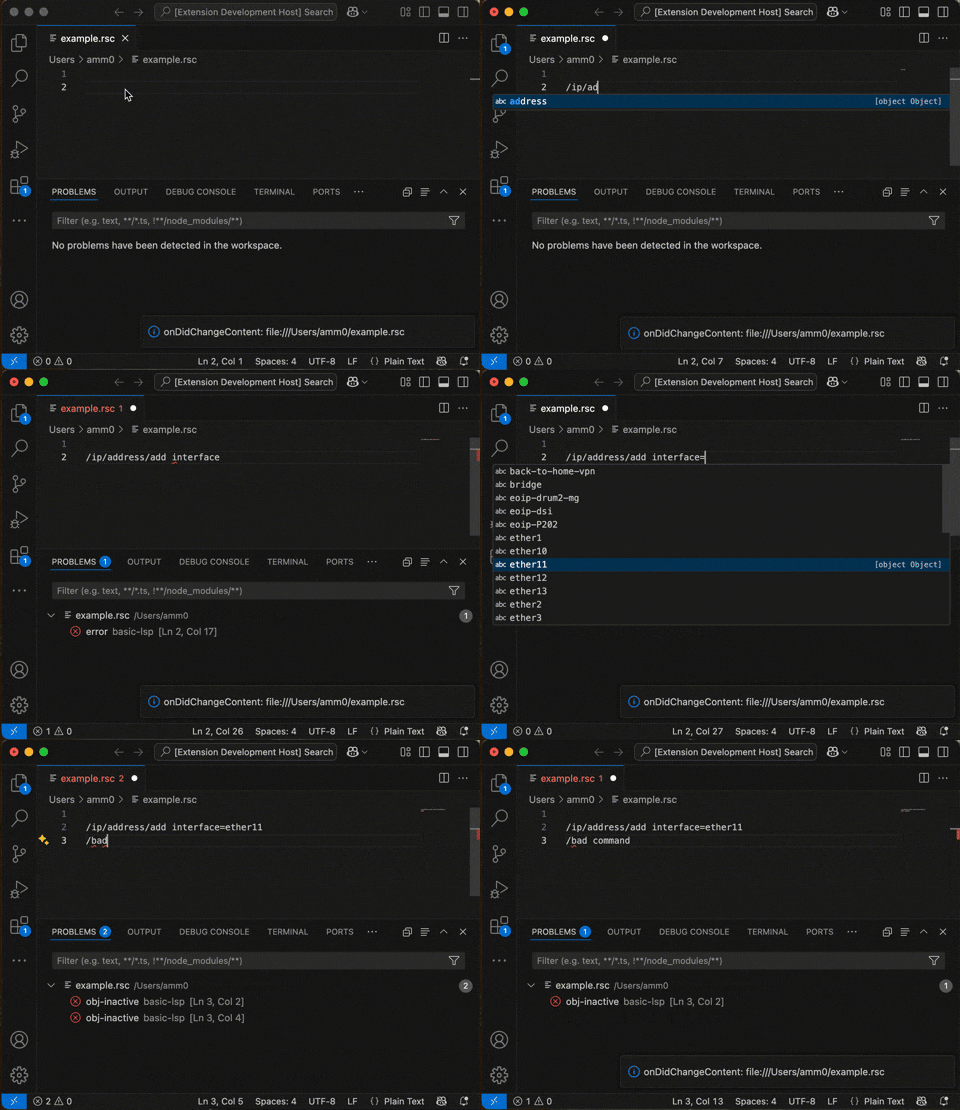
RouterOS LSP is a language server that provides syntax highlighting, code completion, diagnostics, and other intelligent language features for RouterOS scripts (.rsc files) in most LSP-capable editors. By querying a live RouterOS device via the REST API, the LSP ensures syntax always matches your RouterOS version.
RouterOS LSP supports:
- Completion — code suggestions and tab completion
- Diagnostics — real-time syntax error reporting
- Semantic Tokens — syntax highlighting that matches RouterOS CLI colors
- Hover Information — help and variable inspection (Work in Progress)
- Document Symbols — navigate variables and commands (Work in Progress)
- VSCode Commands — additional actions via Command Palette (VSCode only)
- Walkthrough — guided setup wizard (VSCode only)
The LSP activates automatically for .rsc files or when language is set to routeros. In most editors, you can manually set the file language to routeros to enable LSP features.
✅ RouterOS LSP requires an HTTP/REST connection to a RouterOS device. The LSP obtains all syntax data and command definitions by querying RouterOS's
/console/inspectAPI.
⚠️ Without a RouterOS connection, the LSP cannot function. Credentials can be provided in editor's LSP configuration, see Configuration section.
𝌡 For known issues, changelog, and feature tracking, see CHANGELOG.md.
Install RouterOS LSP from VSCode Marketplace
By selecting the "Install" button, you will be prompted by your browser to install the extension.
❤️ Also check out TikBook, which integrates with RouterOS LSP and adds a notebook interface for RouterOS scripts. Installing TikBook will automatically install RouterOS LSP, if missing.
- Open VSCode and go to Extensions (or press ⌘ + Shift + X on Mac, Ctrl + Shift + X on Windows/Linux)
- Search for "TIKOCI", and select "RouterOS LSP"
- Click Install
If you prefer not to use the Marketplace, you can install from a VSIX file from GitHub Releases and
code --install-extension lsp-routeros-ts-*.vsixfrom Terminal. To remove,code --uninstall-extension tikoci.lsp-routeros-ts
For editors other than VSCode, RouterOS LSP provides a standalone language server. The recommended install is via npm (no Gatekeeper/quarantine issues on macOS, works on all platforms with Node.js):
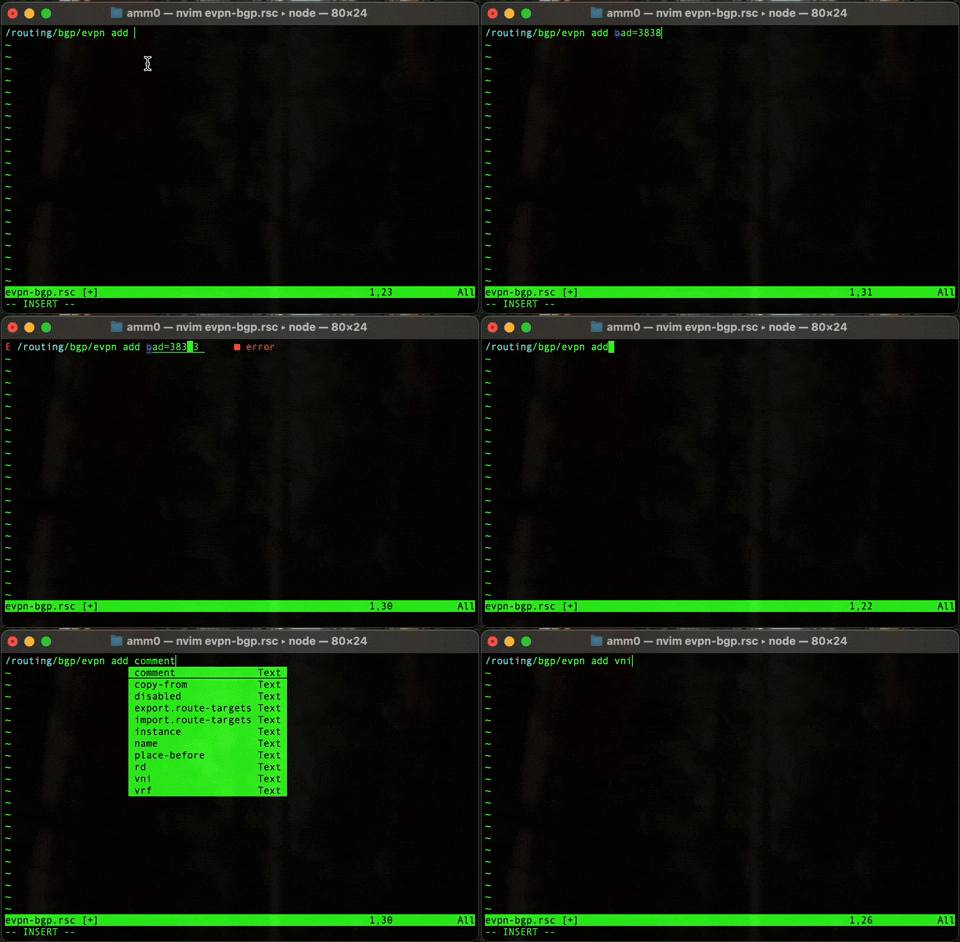
Step 1 — Install the LSP server (pick one):
# Option A: npm (recommended — no platform-specific filenames, no quarantine issues on macOS)
npm install -g @tikoci/routeroslsp

# Option B: standalone binary from GitHub Releases (no Node.js required)
# Download lsp-routeros-server-<platform>.zip from https://github.com/tikoci/lsp-routeros-ts/releases
# Unzip and place in ~/.bin/ — see platform names below
Step 2 — Download the NeoVim config to ~/.config/nvim/lua/routeroslsp.lua:
mkdir -p ~/.config/nvim/lua
curl -o ~/.config/nvim/lua/routeroslsp.lua \
  https://raw.githubusercontent.com/tikoci/lsp-routeros-ts/main/nvim-routeros-lsp-init.lua
Step 3 — Edit credentials at the top of ~/.config/nvim/lua/routeroslsp.lua:
local settings = {
  routeroslsp = {
    baseUrl = "http://192.168.88.1",  -- change to your router IP, or https://
    username = "lsp",                  -- RouterOS user with read,api,rest-api policy
    password = "changeme",             -- RouterOS user password
  }
}
Step 4 — Load in NeoVim. Add one line to ~/.config/nvim/init.lua:
require('routeroslsp')Open a .rsc file — you'll see "RouterOS LSP attached" in the status line. Completion works in insert mode with <C-x><C-o> (or automatically if you have a completion plugin).
If you use lazy.nvim, add this to your plugin specs instead of the require above:
{
  -- points to your own nvim config dir — no git clone needed
  dir = vim.fn.stdpath("config"),
  name = "routeroslsp",
  -- BufReadPre fires before BufEnter, ensuring our autocmd is registered in time
  event = "BufReadPre *.rsc",
  config = function()
    require("routeroslsp")
  end,
}
Note: If you put this in a dedicated spec file (e.g.
lua/plugins/routeroslsp.lua), wrap it inreturn { ... }so lazy.nvim can load it.
If using the GitHub Releases binary (Option B), the filename suffix matches your platform:
| Platform | Filename suffix |
|---|---|
| macOS Apple Silicon | darwin-arm64 |
| macOS Intel | darwin-x64 |
| Linux x64 | linux-x64 |
| Linux ARM64 | linux-arm64 |
| Windows x64 | windows-x64.exe |
| Windows ARM64 | windows-arm64.exe |
Place the binary in ~/.bin/ (or any directory in your $PATH). When using the binary instead of npm, set lspexec at the top of routeroslsp.lua:
-- Option B: standalone binary
local lspexec = {os.getenv("HOME") .. "/.bin/lsp-routeros-server-darwin-arm64", "--stdio"}Any editor supporting the workspace/configuration LSP capability works. The server binary is routeroslsp --stdio (npm) or lsp-routeros-server-<platform> --stdio (GitHub Releases). Configure your editor to pass routeroslsp.* settings via workspace/configuration — see your editor's LSP documentation for the exact format.
All RouterOS LSP configuration is controlled through the LSP workspace/configuration capability. The following settings are available:
interface LspSettings {
  baseUrl: string;                              // "http://192.168.88.1" or "https://router.lan"
  username: string;                             // RouterOS user name
  password: string;                             // RouterOS user password
  apiTimeout: number;                           // Seconds to wait for RouterOS (default: 15)
  allowClientProvidedCredentials: boolean;      // Allow other extensions to override credentials (default: true)
  checkCertificates: boolean;                   // Verify HTTPS certificates (default: false, ignored in VSCode Web)
}For the LSP to function, the REST API must be enabled in your RouterOS device and accessible from your editor's computer. A valid RouterOS account must be provided to the RouterOS LSP as well (see Configuration section) .
Theoretically, you may not need any setup in RouterOS...as by default, HTTP is enabled on port 80, and reachable from default LAN; and, any RouterOS account (with sufficient rights, like admin with full rights) can be used in RouterOS LSP for login via REST API.
However, it recommended to use HTTPS with valid certificate, and an account with more limited rights to RouterOS configurations. For example, write policy is not required for core LSP operations since only /console/inspect data is read.
/certificate/enable-ssl-certificate
/ip/service enable www-ssl
🔐 When using HTTPS, your RouterOS's TLS certificate should be trusted by your system (installed in the system keychain/certificate store). Self-signed certificates are not directly supported by the LSP. Although in some editors, you can disable certificate checking, but this often complex and not recommended._
It's recommended to create a dedicated RouterOS user with minimal permissions for the LSP, rather than using a full admin account:
/user/group add name=lsp policy=read,api,rest-api
/user add name=lsp password=<strong-password> group=lsp
After installing, configure your RouterOS connection:
- Open Settings (press ⌘ + , on Mac or Ctrl + , on Windows/Linux)
- Go to Extensions > RouterOS LSP
- Set the following required fields:
- Base URL: Protocol and host (e.g.,
http://192.168.88.1orhttps://my-router.local) — without trailing slash - Username: RouterOS user with
read,api, andrest-apipolicy access - Password: RouterOS user password
- API Timeout: How long (in seconds) to wait for RouterOS responses (default: 15 seconds)
- Base URL: Protocol and host (e.g.,

Alternatively, use the Command Palette (⌘ + Shift + P on Mac or Ctrl + Shift + P on Windows/Linux), search for "RouterOS LSP: Show Settings", and select it. In VS Code's settings.json, all setting uses the routeroslsp.* prefix.
Other LSP clients should work if they support the workspace/configuration capability. See the Other LSP clients section above.
RouterOS LSP uses semantic tokens for syntax highlighting that matches RouterOS CLI colors by default. If colors don't appear or seem incorrect:
- Open the Command Palette and search for "Refresh Semantic Tokens"
- Select RouterOS LSP: Refresh Semantic Tokens (Syntax Colors)
To customize token colors, use the Command Palette and select "Apply Semantic Color Overrides to Settings" to add token color mappings to your settings.json.
If the LSP doesn't work:
- Open the Output view: Shift + ⌘ + U (Mac) or Shift + Ctrl + U (Windows/Linux)
- Select "RouterOS LSP" from the dropdown to view detailed logs
- Check that your RouterOS credentials are correct and the device is accessible
- Use the Command Palette and select "RouterOS LSP: Test RouterOS Connection" to verify connectivity
For proper syntax checking and colorization, RouterOS LSP converts non-ASCII characters to ? when querying RouterOS's /console/inspect API. This keeps character indexes aligned between RouterOS (Windows-1252 encoding) and VSCode (UTF-16 internally), despite HTTP using UTF-8.
Important: Non-ASCII characters cannot appear in syntax elements (commands, paths, attributes); they can only appear in comments and strings. The LSP safely replaces them with ? during syntax analysis without affecting the actual file content. Your script files preserve all encoding and are never modified by the LSP.
If syntax highlighting becomes misaligned with these characters, use "Refresh Semantic Tokens" command. If issues persist, please report them with the problematic script attached.


RouterOS LSP provides several commands accessible via the Command Palette (⌘ + Shift + P on Mac or Ctrl + Shift + P on Windows/Linux):
- Test RouterOS Connection — Verifies the LSP can successfully connect to RouterOS with current credentials
- Refresh Semantic Tokens (Syntax Colors) — Forces recalculation of semantic tokens for open documents
- Show Logs (Output) — Opens the Output pane and selects the RouterOS LSP log channel
- Show Settings — Opens RouterOS LSP extension settings
- Apply Semantic Color Overrides to Settings — Adds custom semantic token color mappings to
settings.jsonfor further customization - New RouterOS Script — Opens a new blank
.rscfile with the RouterOS language mode set
For build instructions, project structure, and implementation details, see CONTRIBUTING.md.
Not affiliated, associated, authorized, endorsed by, or in any way officially connected with MikroTik Any trademarks and/or copyrights remain the property of their respective holders unless specifically noted otherwise. Use of a term in this document should not be regarded as affecting the validity of any trademark or service mark. Naming of particular products or brands should not be seen as endorsements. MikroTik is a trademark of Mikrotikls SIA. Apple and macOS are trademarks of Apple Inc., registered in the U.S. and other countries and regions. UNIX is a registered trademark of The Open Group. No liability can be accepted. No representation or warranty of any kind, express or implied, regarding the accuracy, adequacy, validity, reliability, availability, or completeness of any information is offered. Use the concepts, code, examples, and other content at your own risk. There may be errors and inaccuracies, that may of course be damaging to your system. Although this is highly unlikely, you should proceed with caution. The author(s) do not accept any responsibility for any damage incurred.