With the Manage Notification feature, you can manage the notifications for your build and deployment pipelines. You can receive the notifications on Slack or via e-mail.
Go to the Global Configurations -> Notifications
Click Configurations to add notification configuration in one of the following options:

You can manage the SES configuration to receive e-mails by entering the valid credentials. Make sure your e-mail is verified by SES.
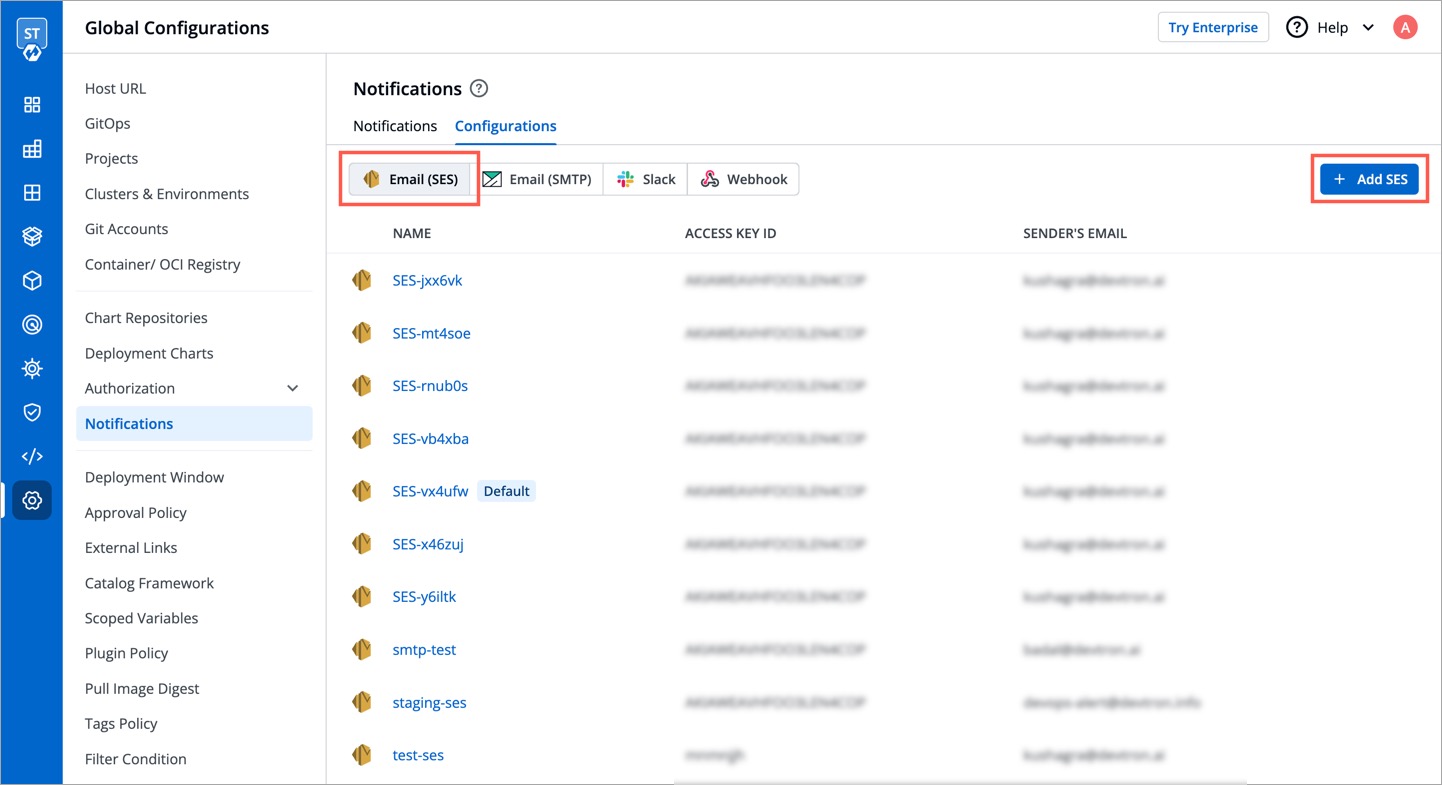
Click Add and configure SES.

| Key | Description |
|---|---|
Configuration Name |
Provide a name to the SES Configuration. |
Access Key ID |
Valid AWS Access Key ID. |
Secret Access Key |
Valid AWS Secret Access Key. |
AWS Region |
Select the AWS Region from the drop-down menu. |
E-mail |
Enter the SES verified e-mail id on which you wish to receive e-mail notifications. |
Click Save to save your SES configuration or e-mail ID
You can manage the SMTP configuration to receive e-mails by entering the valid credentials. Make sure your e-mail is verified by SMTP.

Click Add and configure SMTP.

| Key | Description |
|---|---|
Configuration Name |
Provide a name to the SMTP Configuration |
SMTP Host |
Host of the SMTP. |
SMTP Port |
Port of the SMTP. |
SMTP Username |
Username of the SMTP. |
SMTP Password |
Password of the SMTP. |
E-mail |
Enter the SMTP verified e-mail id on which you wish to receive e-mail notifications. |
Click Save to save your SMTP configuration or e-mail ID
You can manage the Slack configurations to receive notifications on your preferred Slack channel.
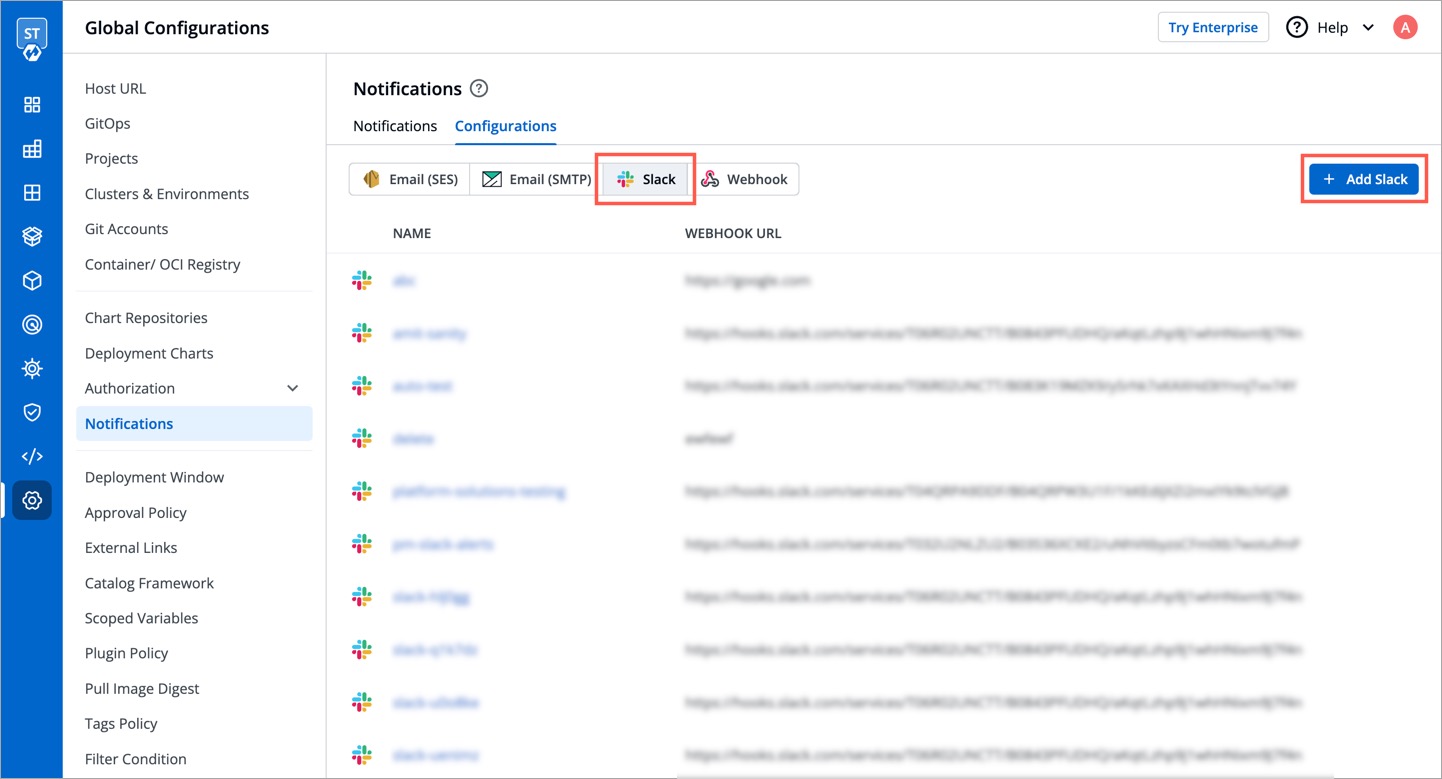
Click Add to add new Slack Channel.

| Key | Description |
|---|---|
Slack Channel |
Name of the Slack channel on which you wish to receive notifications. |
Webhook URL |
Enter the valid Webhook URL link. |
Project |
Select the project name to control user access. |
Click Save and your slack channel will be added.
Click Add New to receive new notification.


Send To
When you click on the Send to box, a drop-down will appear, select your slack channel name if you have already configured Slack Channel. If you have not yet configured the Slack Channel, Configure Slack Channel
Select Pipelines
- Then, to fetch pipelines of an application, project and environment.
- Choose a filter type(
environment,projectorapplication) - You will see a list of pipelines corresponding to your selected filter type, you can select any number of pipelines. For each pipeline, there are 3 types of events
Trigger,Success, andFailure. Click on the checkboxes for the events, on which you want to receive notifications.
- Choose a filter type(
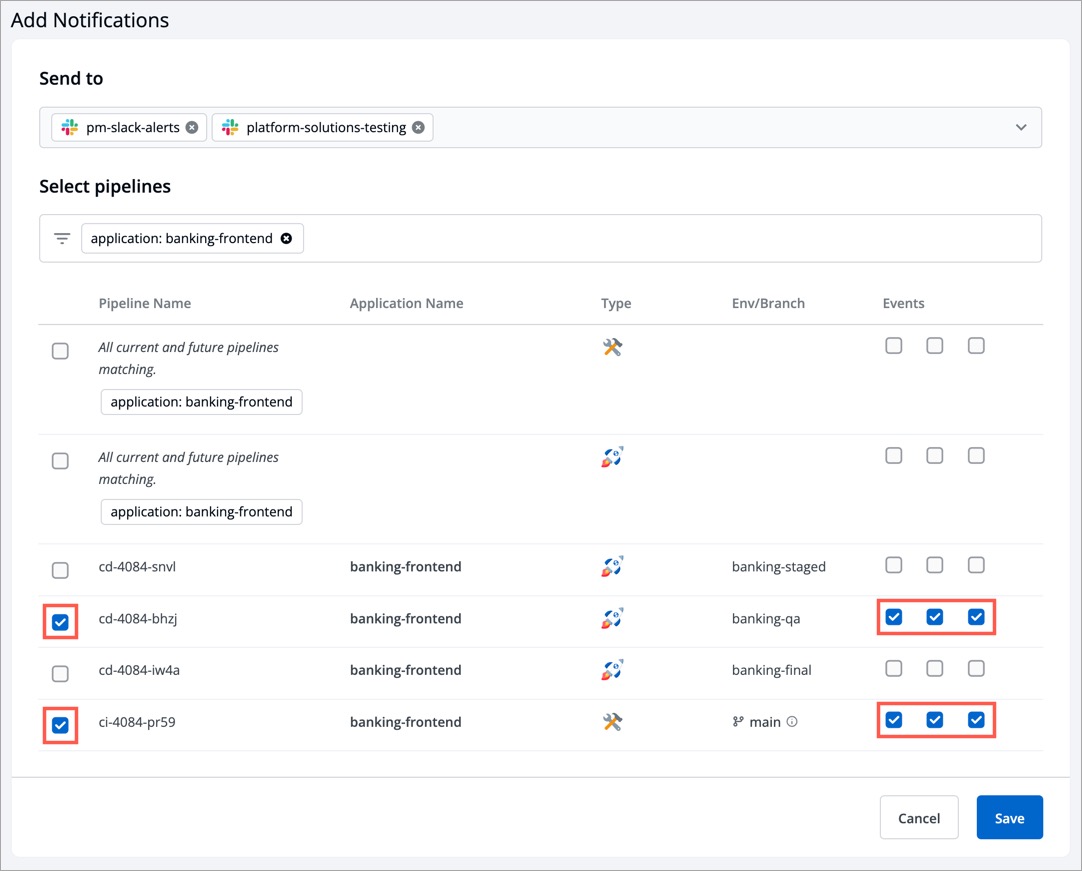
Click Save when you are done with your Slack notification configuration.

Send To
- Click
Send Tobox, select your e-mail address/addresses on which you want to send e-mail notifications. Make sure e-mail id are SES Verified.
If you have not yet configured SES, Configure SES.
Select Pipelines
- To fetch pipelines of an application, project and environment.
- Choose a filter type(environment, project or application)
- You will see a list of pipelines corresponding to your selected filter type, you can select any number of pipelines. For each pipeline, there are 3 types of events
Trigger,Success, andFailure. Click on the checkboxes for the events, on which you want to receive notifications.
Click Save once you have configured the SES notification.

Send To
- Click
Send Tobox, select your e-mail address/addresses on which you want to send e-mail notifications. Make sure e-mail IDs are SMTP Verified.
If you have not yet configured SMTP, Configure SMTP.
Select Pipelines
- To fetch pipelines of an application, project and environment.
- Choose a filter type(environment, project or application)
- You will see a list of pipelines corresponding to your selected filter type, you can select any number of pipelines. For each pipeline, there are 3 types of events
Trigger,Success, andFailure. Click on the checkboxes for the events, on which you want to receive notifications.
Click Save once you have configured the SMTP notification.