
A wall clock on a 64x32 HUB75 LED matrix that also shows local weather and US National Weather Service (NWS) emergency weather alerts. Runs on the Seengreat RGB Matrix HUB75 S3 controller (ESP32-S3), fetches weather from Open-Meteo and alerts from api.weather.gov, plays a chime through the board's speaker output when a new alert arrives, and is configured entirely through its own web interface.
It also runs on the Guition ESP32-4848S040, a 4-inch 480x480 touch LCD with an ESP32-S3. There the screen shows a 64x64 LED-style dot matrix: the clock and its pages on top, and the forecast, hourly graph, world clock and radar taking turns underneath. See 4-inch LCD board. A third build targets the Spotpear ESP32-C3 1.44-inch "mini TV" pendant, with the same picture on a 128x128 screen; see ESP32-C3 mini TV.
Status: running on real hardware (the controller and panel listed below). The panel driver, WiFi setup, weather, NWS alerts, web interface, OTA and self-update are in daily use. The alert chime, thumb-wheel keys, lightning feed and Pushbullet have been built but not yet confirmed on hardware; reports welcome. Other 64x32 panels may need the driver settings in Troubleshooting. The 4-inch LCD board runs the display, touch, WiFi, weather and web interface on real hardware.
- Clock in a fixed-cell 7x11 digit font (no jitter), 12/24-hour, AM/PM or seconds, blinking colon. Time comes from NTP and is kept in the on-board PCF85063 real-time clock, so the display is correct right after a power cut.
- Weather from Open-Meteo (free, no API key): current temperature, feels-like, humidity, wind, gusts, conditions with a weather icon, and a three-day forecast screen with highs and lows. Imperial or metric units.
- NWS alerts from api.weather.gov for your coordinates: severity-coloured scrolling banner (red for Extreme/Severe, orange Moderate, yellow Minor), a flashing frame for the first minute, automatic expiry, cancellation and de-duplication of updates, a severity filter and an ignore list for event types you do not care about.
- Sounds through the ES8311 codec and speaker connector: fourteen synthesized patterns, from a gentle two-tone chime, doorbell and arpeggio to alarm-clock beeps, three sirens, the NOAA 1050 Hz warning tone and a simulation of the EAS attention signal (with or without the SAME data bursts). Extreme alerts such as tornado warnings get their own sound; volume, quiet hours and optional repeats while an alert stays unacknowledged.
- Spoken announcements: after the chime a natural English voice says what happened: "Tornado Warning", "Lightning nearby", "Alarm", "Timer finished". The clips come from a voice pack rendered with Piper TTS that the clock downloads once from the update site; no speech synthesis runs on the ESP32. It can also speak the time, on request or on the hour, strung together from number clips.
- Hourly chime, optionally striking the hour one to twelve times, with a half-hour chime and a spoken time if you want them. Quiet hours silence it, so it will not wake you.
- Display control: manual brightness, day/night schedule, night mode (very dim, clock only), gamma, colours and timing. Pages are picked from a tick list and dragged into the order you want.
- Web UI with setup access point and captive portal, mDNS (
matrixweatherclock.local), REST API, WiFi scanner, test buttons (panel pattern, fake alert, chime), log viewer and over-the-air firmware update. Two WiFi networks can be saved, and the address can be static instead of DHCP. - Lightning: live strikes from the Blitzortung.org network (optional, via the community MQTT relay). Strikes within your radius show a bolt next to the clock, a flash across the panel, a "LIGHTNING 8MI NW 3M" page and an optional chime.
- Alarms, timer and stopwatch: four alarms with weekday selection, label, a snooze length you choose and an optional one-off mode that switches the alarm off after it rings; a countdown timer; a stopwatch that counts up on the panel. Snooze or stop with the wheel.
- Sleep timer: run for a set number of minutes, then fade the panel out and hold it dark until you cancel it.
- Messages:
POST /api/messagescrolls any text on the clock with an optional chime, for Home Assistant, scripts or phone shortcuts. - More screens: 12-hour temperature and rain-chance graph, sunrise/sunset page, brightness that follows the sun, an ultraviolet index page with the WHO exposure band, a sky page with cloud cover and visibility, a rain page with today's total and chance, sea temperature at your tide station, a world clock showing up to four places at once with a marker when they are on another day, and a countdown to up to three dates of your own.
- Polish: pages slide in, rain/snow/lightning animate behind the weather, holiday colour themes with confetti, snow, hearts or sparkles on the day, plus up to four dates of your own that colour the clock, and a date format that can read month-first, day-first or numeric.
- Pushbullet: new weather alerts, nearby lightning and alarms pushed to your phone; pushes sent to the clock (from the phone app, IFTTT or scripts) scroll on the panel.
- Webhook: the same events posted as JSON to any URL you choose, so ntfy, Gotify, Home Assistant, Discord or your own script can react without an account. The two JSON field names are configurable to match the service.
- Moon phase: a page with the moon drawn as it looks tonight, the phase name, how much is lit and the days to the next full or new moon, computed on the clock from the date alone.
- Xbox player: gamerscore, online status and the game being played, the newest achievement and friends online for any gamertag, through the free OpenXBL service, with a scrolling line when the player comes online or unlocks an achievement.
- Tides: the next high and low water from NOAA's tide predictions for the station you pick, with a rising or falling arrow and the height right now, as a page and on the Status tab.
- Animated weather radar: an eleven-frame NEXRAD loop of the last 50 minutes around your location, full screen on the panel with a blinking home marker. It takes turns with the forecast screens and comes back every couple of page cycles while rain or snow is nearby.
- Indoor sensor: plug a BME280, BMP280 or BME680 into the I2C header and the clock shows indoor temperature, humidity and dew point with rising / falling arrows, keeps 24 hours of history and charts it in the web UI. Barometric pressure has its own page, which uses the sensor when there is one and the weather service otherwise. A BME680 adds a relative air-quality score with a "ventilate" alert; every sensor adds dew point, condensation and mould risk, and a Zambretti barometer forecast page.
- Live view of the panel in the web UI, settings backup and restore.
- Buttons: the board's thumb-wheel switch changes pages, acknowledges alerts, stops or snoozes alarms, refreshes data.
- Remote control: a $2 infrared receiver on one pin makes any NEC remote (or a learned TV remote) drive the clock;
a phone page at
/remotehas big buttons for the same actions.
| Part | Notes |
|---|---|
| Seengreat RGB Matrix HUB75 S3 (SKU 260612) | ESP32-S3-WROOM-1-N16R8: 16 MB flash, 8 MB PSRAM, native USB-C, ES8311 codec, ES7210 mic ADC, speaker amp, PCF85063 RTC, PCA9557 thumb-wheel switch, micro-SD. Controller used in this build (Amazon) |
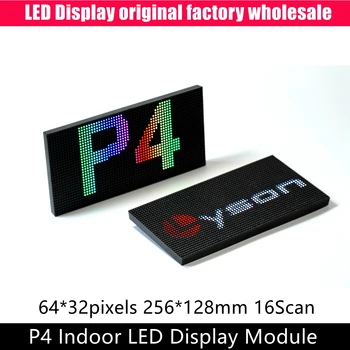
| P4 64x32 HUB75 panel (P4-256x128-2121-A5 or similar) | 1/16 scan, 3-in-1 SMD, 256x128 mm. Any 64x32 1/16-scan panel should work. Panel used in this build (AliExpress) |
| 5 V power supply | The board has a second USB-C and a VH-4P screw terminal for panel power (5 V / 4 A max). A 64x32 panel at full white can draw close to that |
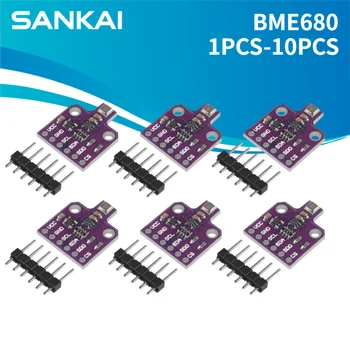
| Indoor sensor (optional) | Bosch BME680 / BME688 breakout for indoor temperature, humidity, pressure and air quality. Sensor used in this build (AliExpress) — boards sold as "BME680" are usually BME688s; the firmware reads register 0xF0 and handles either. Solder the supplied pin header on: a header pushed in loose makes intermittent contact |
| JST SH 1.0 mm 4-pin cable | Needed to reach the board's I2C connector from the sensor. Pigtail set used in this build (AliExpress) — pick the 4-pin, 100 mm one and wire it by the board's labels (3V3 GND IO1 IO2), not by wire colour |
| Speaker (optional) | 4-8 ohm on the board's speaker connector, needed for the chime |
| CR1220 / LIR battery (optional) | On the SH1.0 connector to keep the RTC running without power |
The same firmware runs on the Guition ESP32-4848S040, an all-in-one board with an ESP32-S3 (16 MB flash, 8 MB
PSRAM), a 4-inch 480x480 IPS screen and capacitive touch. It needs no panel, power supply or wiring: plug in USB-C
and flash it. Build it with pio run -e guition_lcd4848.
| On the LCD board | What happens |
|---|---|
| Screen | A 64x64 matrix of round-cornered dots fills the screen, so it keeps the LED look. The top half is the usual clock with its rotating pages, alerts, alarms and themes. The bottom half cycles the 3-day forecast, the 12-hour graph, the world clock and the radar loop, and brings the radar forward when rain or snow is near. On the HUB75 matrix those screens still replace the clock for a while, as before |
| Rotation | Panel > LCD rotation turns the picture in 90-degree steps and applies at once |
| Brightness | Drives the backlight, with a floor so the night level stays readable |
| Touch | Tap for the next page or to snooze an alarm. Hold for 1.5 s to stop an alarm, clear a message or acknowledge alerts. Swipe left or right on the top half for the next or previous page, and on the bottom half for the next or previous forecast, graph, world clock or radar screen. Swipe up or down to change brightness. Directions follow the picture, whatever the rotation |
| Not available | No speaker (no chime or spoken announcements), no battery-backed clock (time comes from the internet), no thumb-wheel keys. The IR receiver is off by default because its usual pin is the board's console line |
| Updates | Browser uploads work with .pio/build/guition_lcd4848/firmware.bin. Automatic updates only install an image published for this board, never the HUB75 one |
Pins, timings and flashing details are in docs/hardware.md.
The Spotpear ESP32-C3 1.44-inch "mini TV" pendant (wiki)
is a much smaller chip: one core, about 400 KB of RAM and no PSRAM. Build it with pio run -e spotpear_c3tv and
upload over its USB port with pio run -e spotpear_c3tv -t upload. The screen goes white while the chip is in download
mode and comes back when it restarts; if it stays white after an upload, tap reset.
Status: running on the device: display, keys, standby, WiFi, NTP time, weather, alerts and the lightning feed.
| On the C3 board | What happens |
|---|---|
| Screen | The same 64x64 picture as the 4-inch LCD, at 2 pixels per dot, which fills the 128x128 screen exactly: the clock on top, the forecast, hourly graph and world clock taking turns underneath |
| Brightness | The backlight has no control line, so brightness dims the colours instead, with a floor so the night level stays readable |
| Keys | Key1: previous page, hold for dimmer. Key2: next page, hold for brighter. BOOT: next bottom screen, hold to dismiss an alarm, message or alerts. While an alarm rings, a tap snoozes and a hold stops it. Hold Key1 + Key2 for 2 s for standby (see below). The fourth button is reset |
| Battery and standby | The board charges a LiPo through its PL4054 charger but has no power switch, and the backlight is wired straight to the supply. Standby (Key1 + Key2 for 2 s) blacks out the picture, turns WiFi off and sleeps the chip; any key starts the clock again. The backlight stays lit and keeps drawing about 10-20 mA, so the battery still runs down. Alarms do not ring in standby. To switch it off completely, unplug the battery |
| Not available | Radar (no memory for its frames), sound and the voice pack, battery-backed clock, indoor sensor and IR receiver (no free pins) |
| Updates | Browser uploads work with .pio/build/spotpear_c3tv/firmware.bin. Automatic updates only install an image published for this board |
Where the parts came from
| Controller | Panel | Indoor sensor | I2C cable |
|---|---|---|---|
 |
 |
 |
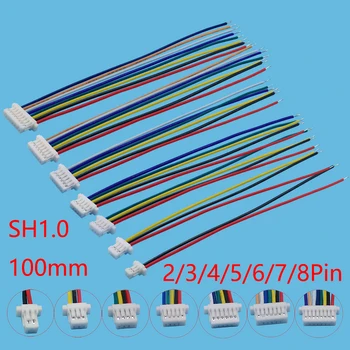 |
| Seengreat RGB Matrix HUB75 S3 (Amazon) | P4 256x128 mm 64x32 module (AliExpress) | BME680 / BME688 breakout (AliExpress) | JST SH 1.0 mm 4-pin pigtail (AliExpress) |
Plug the panel's HUB75 input into the board's box header with the supplied ribbon cable (or push the board straight onto the panel's pin header). Feed the panel from the board's panel-power USB-C or the screw terminal. Connect the programming USB-C to your computer.
Pin map used by the firmware (include/pins.h):
| Function | GPIO | Function | GPIO |
|---|---|---|---|
| HUB75 R1 G1 B1 | 5 4 6 | I2S MCLK / BCLK / LRCK | 38 / 48 / 21 |
| HUB75 R2 G2 B2 | 15 7 17 | I2S data ESP→codec / codec→ESP | 14 / 47 |
| HUB75 A B C D E | 8 18 10 9 16 | Speaker amp enable | 3 |
| HUB75 LAT / OE / CLK | 11 / 13 / 12 | I2C SDA / SCL (RTC, codec, expander) | 1 / 2 |
| micro-SD SPI (unused) | 42 41 40 39 | BOOT button | 0 |
The easiest way to flash a board is the web installer, which uses Web Serial (Chrome or Edge on a computer):
- Open https://icbizlabs.github.io/MatrixWeatherClock/ (published by the build workflow from the
installer/folder; it goes live once GitHub Pages is enabled for the repository). - Connect the board's programming USB-C port, click Install Matrix Weather Clock, pick the serial port and choose "erase" on a first install. If the port is missing, hold BOOT, tap RST, release BOOT and try again.
- When it reboots, join the
MatrixWeatherClock-XXXXnetwork and open http://4.3.2.1/ to finish setup.

The same page works from your own machine, because browsers treat localhost as a secure origin:
cd installer
python -m http.server 8000      # then open http://localhost:8000/ in Chrome or Edge
Releases: pushing a tag such as v0.4.0 (matching MWC_VERSION in platformio.ini) makes the workflow publish a
GitHub release with the images, checksums and generated notes; a tag with a suffix like v0.4.0-beta becomes a
pre-release.
installer/ also holds the images directly: matrix-weather-clock-<version>-factory.bin (whole flash, write at offset 0 with
esptool) and matrix-weather-clock-<version>-ota.bin (upload from the clock's Update tab). Every push to main rebuilds the
firmware on GitHub Actions, republishes the installer and, through the manifest, offers the new version to every clock
that has automatic updates on; the images are also attached to each workflow run as an artifact. python tools/make_installer.py --build regenerates the folder locally.
Once a clock runs version 0.3.0 or later it keeps itself current: every six hours (configurable on the Update tab) it
reads the installer's manifest.json, and when a newer version is listed it downloads the OTA image over HTTPS, checks
the MD5 from the manifest, installs it with a progress bar on the panel and reboots. Automatic installs wait while an
alarm or timer is running. The Update tab shows the installed and latest versions and has "Check now" and "Install"
buttons; automatic installation can be switched off to install manually. The manifest URL is configurable, so a fork
can point its clocks at its own GitHub Pages site. The same manifest advertises the voice pack for the spoken
announcements; the clock fetches a new pack whenever the pack version changes.
Every clock starts with the hostname matrixweatherclock, so with two or more on one network only one of them answers
at http://matrixweatherclock.local/, and it is not predictable which. Give each clock its own name on the WiFi tab
(kitchen-clock, office-clock), reaching it by the IP address it shows after connecting, and each gets its own
address such as http://kitchen-clock.local/. A DHCP reservation in the router keeps each clock's IP fixed as well,
which helps on phones that do not resolve .local names.
Automatic updates keep every clock on the same firmware without further work. To copy settings from one clock to
another, download a backup on the Update tab and restore it on the other clock. The backup is the whole configuration,
including the WiFi passwords, the hostname, the panel or screen settings and every API key, so either set the hostname
back afterwards or delete the wifi and panel blocks from the file before restoring it. The same file can be posted
to /api/config from a script to set up several clocks at once.
Requirements: PlatformIO Core (pip install platformio) and Python 3 (used
by the build script that embeds the web page). No Node.js needed.
pio run                 # first run downloads the ESP32-S3 toolchain and all libraries (several minutes)
pio run -t upload       # flash over the programming USB-C port
pio device monitor      # serial log, 115200 baud
If no serial port appears, hold BOOT, tap RST, release BOOT, then upload again. The board uses the S3's native USB, so no driver is needed.
Later updates can be uploaded from the browser (Update tab) with .pio/build/seengreat_hub75_s3/firmware.bin; settings
are kept across updates.
For the 4-inch LCD board, build with pio run -e guition_lcd4848 and flash through its CH340 port at 460800 baud
(details in docs/hardware.md). Its browser updates use .pio/build/guition_lcd4848/firmware.bin.
For the ESP32-C3 mini TV, build with pio run -e spotpear_c3tv and flash over its micro-USB (the C3's native USB, no
driver needed). If the upload sits at the progress bar on Windows, write the whole image with esptool instead:
esptool --chip esp32c3 --port COMx write-flash 0x0 .pio/build/spotpear_c3tv/firmware.factory.bin.
- Power up. The panel shows a ten-second test pattern (solid colours, border, gradients, info text), then the clock
with
SETUP WIFI/4.3.2.1in the bottom half. - Connect a phone or laptop to the WiFi network MatrixWeatherClock-XXXX (open by default). The setup page should open automatically; otherwise browse to http://4.3.2.1/.
- WiFi tab: pick your network (Scan), enter the password, Save & connect. The access point goes away once the clock is online.
- Location & Weather tab: type your city or ZIP code, press Find and pick the match to fill in latitude and longitude (the lookup uses Open-Meteo's geocoding service from your browser), choose the time zone, units, and enter a contact e-mail. The NWS API requires a contact in every request; alerts stay disabled until one is set.
- From now on the UI is at http://matrixweatherclock.local/ (or the IP shown in the header).

Captured from a running clock through GET /api/frame (demo mode supplies the sample data) and drawn as LED dots;
the alert screens further down are simulated renderings with the same layout, fonts and colours. Animated GIFs live in
docs/screens/gif/, still PNGs of the same scenes in docs/screens/.

Every screen in turn (about two minutes): pages, effects, forecast, hourly graph, indoor sensor, radar, alerts, alarm, timer, message, holiday themes, night mode, test pattern and update. Individual scenes follow below.

Page rotation with slide transitions, then the forecast screen.
 |
 |
 |
| Date page | Temperature | Conditions |
 |
 |
 |
| Rain (animated) | Snow (animated) | Thunderstorm (animated) |
 |
 |
 |
| Fog at night | Wind | High / low |
 |
 |
 |
| Feels like | Sunrise / sunset | 3-day forecast |
 |
 |
 |
| 12-hour graph | Tornado warning (new alert) | Winter storm watch |
 |
 |
 |
| Lightning nearby | Alarm ringing | Timer running |
 |
 |
 |
| Message | Christmas theme | Fourth of July theme |
 |
 |
 |
| Valentine's theme | Halloween theme | Night mode |
 |
 |
 |
| IP after connecting | Setup access point | Splash |
 |
 |
 |
| Test pattern | Radar loop: coastline, water tint, home cross (real data, dry day) | Indoor page: temperature, humidity, pressure with trend arrows |
 |
 |
|
| Air quality page: score, trend, good / fair / poor (BME680) | Barometer page: pressure, tendency and the Zambretti forecast | |
 |
 |
|
| Tide page: next high and low water, rising / falling arrow, height right now | Moon page: tonight's disc, phase name, percentage lit, days to full or new |
The banner scrolls the event and headline of every active alert, coloured by the highest severity: red for Extreme and Severe, orange for Moderate, yellow for Minor. A one-pixel frame flashes for the first minute after a new alert ("new" below); the clock stays visible throughout.
|
 |
 |
| Tornado Warning (Extreme, new) | Hurricane Warning (Extreme, new) | Severe Thunderstorm Warning (Severe, new) |
 |
 |
 |
| Flash Flood Warning (Severe, new) | Excessive Heat Warning (Severe, new) | Tornado Watch (Severe) |
 |
 |
|
| Blizzard Warning (Severe) | High Wind + Red Flag Warnings (two alerts) | Winter Storm Watch + Wind Advisory (Moderate) |
 |
 |
 |
| Winter Weather Advisory (Moderate) | Heat Advisory (Moderate) | Dense Fog Advisory (Minor) |

Four frames, half a second apart: the banner scrolls left while the frame flashes.
Phones and tablets get a simpler path. The setup access point opens the setup wizard at http://4.3.2.1/setup: four short screens for WiFi (with a network list), location (city/ZIP search or coordinates), time zone and units, and the NWS alert contact, saved in one go. It is also reachable any time from the "Setup wizard" link in the header of the full page, or at http://matrixweatherclock.local/setup.
The pages carry a web-app manifest, icons and the iOS meta tags, so "Add to Home Screen" gives you an icon that opens the clock's page full screen like an app. On a phone the page shows a one-time hint with the two taps needed (Share → Add to Home Screen on iPhone/iPad, browser menu → Add to Home screen on Android). Browsers only offer their own install prompt over HTTPS, which the clock's plain-HTTP LAN page cannot provide; the hint covers that gap.
 |
 |
| Setup wizard on a phone | Full page on a phone with the home-screen hint |
Everything is configured from the clock's own page at http://matrixweatherclock.local/. The Status tab shows a live view of the panel, current conditions, active alerts with acknowledge and test buttons, and system health; the other tabs hold the settings. Changes apply immediately except panel driver settings, which need a reboot.

 |
 |
| Location & Weather: coordinates with city/ZIP search, time zone, units, NWS alert filters, lightning, indoor sensor, tides, Xbox player | Display: brightness schedule, night mode, pages, effects, colours, radar |
 |
 |
| Alarms: countdown timer and four alarms with weekdays | Update: automatic updates, settings backup, firmware upload |
 |
 |
| Panel: HUB75 driver settings and the test pattern | Notify: Pushbullet notifications in both directions |
 |
 |
| Audio: chime, volume, quiet hours, spoken announcements | WiFi: network, hostname, setup AP password, factory reset |
 |
 |
| Remote: infrared receiver, learn mode, key mapping | The phone remote at /remote |
Screenshots are taken from the real page served with sample data; images live in docs/ui/.
+----------------------------------------------------------------+
|  1 2 : 3 4  PM     <- time, 7x11 digits, AM/PM or seconds     |
|  [icon] 72°F        <- bottom half: rotating pages             |
|         H 46%                                                  |
+----------------------------------------------------------------+
Bottom-half pages (order and timing configurable): date (weekday, month day), temp (icon, temperature,
humidity), cond (icon and conditions text, scrolls if long), wind (direction, speed, gusts), hilo (today's
high/low), feels (feels-like temperature), sun (sunrise and sunset). Every few cycles the whole panel switches to
a full screen: the forecast (three columns with weekday, icon and high/low) alternating with the hourly graph
(temperature curve and rain-chance bars for the next 12 hours). Pages slide in from the right; when it is raining,
snowing or thundering, matching animation runs behind the weather pages. On holidays the clock changes colours and
adds an effect (snow at Christmas, confetti on New Year and July 4th, hearts on Valentine's Day, and so on).
More pages can join the rotation on the Display tab: indoor, air and baro (indoor sensor), tide, moon, uv,
sky, rain, water, world, event and xbox. Each is described in its own section below and hides itself while it
has no data.
When an alert is active the bottom half becomes a scrolling banner (EVENT: headline, all active alerts
in severity order) and a one-pixel frame flashes around the panel for the first minute. The clock stays visible.
In night mode the panel dims to the configured level and hides the weather, but an alert banner still shows.
Before the time is known the bottom half shows the connection state (WIFI..., SETUP WIFI with 4.3.2.1, or the
IP address once online). After every WiFi connection the IP address is shown for 20 seconds (Display tab).
The Status tab has a demo switch that cycles the panel through sample scenarios eight seconds each: sunny, rain, snow,
thunderstorm, lightning, wind, high/low, sun times, the forecast and hourly screens, a tornado warning and a winter
storm watch, an alarm, a running and a finished timer, a message, the holiday themes, night mode, the indoor sensor,
air-quality, barometer, tide and moon pages, the Xbox page (a player online, then an achievement unlocking) and a radar loop with a synthetic storm. It uses made-up
data, turns itself off after the chosen number of minutes, and the wheel push ends it early. It is silent unless
"with sounds" is ticked, in which case the alert, lightning, alarm, timer and message scenarios play their chimes even
during quiet hours. Scripts can use POST /api/demo?on=1&minutes=10&sound=1.
- Polled every 2 minutes (configurable, minimum 60 s) from
https://api.weather.gov/alerts/active?point=lat,lon&status=actual&message_type=alert,update(the endpoint rejects alimitparameter; the firmware keeps at most 12 alerts). - Only alerts at or above the configured minimum severity are shown; events in the ignore list (for example
Special Weather Statement) are hidden. The chime has its own, usually stricter, severity threshold. - Updates to an alert you already saw inherit its state, so they do not flash or chime again. Cancelled alerts and alerts past their end time disappear on their own.
- After three failed polls in a row the banner marks the data as stale with a grey dot in the corner; the last known alerts stay on screen.
- Acknowledge (web UI or button K2) stops the flashing frame and any repeat chimes.
- Test without waiting for a storm: the Location tab has an Inject test alert button (3 minutes, Extreme), and
tools/find_nws_test_point.shprints coordinates inside a currently active real alert.
Optional, off by default (Location tab). The clock subscribes to the Blitzortung.org volunteer network through the
public MQTT relay used by the Home Assistant integration (blitzortung.ha.sed.pl, personal use only, no account) for
the map cells around your coordinates and keeps strikes inside your radius (default 40 km) for a window (default
15 minutes). While strikes are nearby: a bolt icon next to the clock, a bolt flash across the panel on every new
strike, a LIGHTNING page with distance, direction and age in the rotation, and a chime on the first strike of a
storm (then at most every five minutes, respecting quiet hours). Thunderstorm conditions from the weather data also
show lightning in the animation even without the network feed.
Alarms tab: up to four alarms with time, weekdays, label and sound. A ringing alarm shows ALARM and its label,
flashes an orange frame and repeats the sound every few seconds for up to ten minutes, ignoring quiet hours.
Wheel push (K2) stops it, wheel up/down snoozes; the Status tab has the same buttons. The timer counts down in the
bottom half and rings the same way.
Each alarm has its own snooze length (one to sixty minutes, nine by default) and can be marked one-off: it rings once and then switches itself off, and that change is saved, so a reminder for tomorrow morning does not come back the following week.
The stopwatch counts up on the bottom half until you pause it and keeps the time on screen until you reset it.
Start and pause it from the Alarms tab, the phone remote, an infrared key, or
POST /api/stopwatch {"action": "toggle"}. It is independent of the countdown timer.
The sleep timer runs the clock normally for the minutes you give it, then fades the panel out over the seconds set
on the Display tab and holds it dark until you cancel it. POST /api/sleep {"minutes": 30}, or zero to cancel. It does
not touch the night-mode schedule, and it does not survive a reboot.
Messages: POST /api/message with {"text": "...", "seconds": 60, "chime": true, "color": "#40C0FF"} scrolls the
text (0 seconds = until cleared with POST /api/message/clear or the wheel push). The Status tab has a form for it.
The radar screen shows the MRMS base reflectivity mosaic from NOAA's nowCOAST map service: the Multi-Radar Multi-Sensor product with quality control, so the evening bloom of birds and insects, ground and sea clutter are removed and what is left is rain, the same data the weather apps draw. The unfiltered NEXRAD composite from the Iowa Environmental Mesonet is available as an alternative on the Display tab. The clock asks for a 64x32 crop centred on your coordinates, 200 km wide by default, in the standard reflectivity colours on black: blues and greens for light rain, yellow and orange for heavy rain, red and magenta for severe cores. The newest mosaic plus the frames from 5 to 50 minutes ago make an eleven-frame loop, so the direction and speed of what is coming are obvious; after the first fill only the newest frame is fetched, every five minutes. A blinking cross marks home and the corner label counts the frame age down to "NOW".
Under the echoes the clock draws a base map so the picture makes sense on a dry day: the coastline as a thin grey line and water as a dim blue tint, from NASA's Global Imagery Browse Services (the OpenStreetMap land/water mask and the Natural Earth coastlines), fetched once for your location and radius. The Display tab can switch to coastline only, water only or nothing.

The radar screen in demo mode: a synthetic storm crossing the coast; the label counts the frame age down to NOW.
The loop takes its turn with the forecast and hourly screens every few page cycles, and while echoes sit near the
centre of the picture or the current conditions report rain or snow it comes back every two page cycles. The Status
tab plays the same loop enlarged with a "Show on the clock" button, POST /api/show with screen=radar does the same,
and the Display tab sets radius, timing and how often it appears. US coverage only, like the NWS alerts.
The moon page draws the disc with the lit part as it appears tonight (waxing on the right, as seen from the northern hemisphere), names the phase, and alternates the second line between the phase word, the percentage lit and the days to the next full or new moon. It is computed on the clock from the date with the standard low-precision lunar series, which lands new, quarter and full moons within about 20 minutes of the almanac. The Status tab has the same line, and the page can be dropped from the rotation on the Display tab.
Pick a NOAA tide station on the Location & Weather tab: Find nearest stations downloads NOAA's station list in
your browser and lists the six closest to your coordinates, and one click fills the ID in. The clock then fetches
the high and low water predictions (datum MLLW) for the next two days a few times a day, in feet or metres following
your units. The tide page shows the next two extremes in order, high in the "high" colour and low in the "low"
colour, an arrow for rising or falling, and the estimated height at the moment (a cosine between the neighbouring
extremes, the shape real tides follow closely). The Status tab lists the coming highs and lows. US coasts only, since
the predictions come from CO-OPS; /api/status carries the same numbers with epoch times for scripts.
The clock can follow one Xbox player through OpenXBL, a free service in front of the Xbox Live web API. Sign in at xbl.io with a Microsoft account, copy the API key from the dashboard, and enter it with the gamertag on the Location & Weather tab under Xbox player. Any public gamertag works, not only the key's own.
The xbox page shows the gamertag with a green dot while the player is online, and below it, every few seconds: the gamerscore, the game being played (or OFFLINE), how many friends are online, and the newest achievement. With Scroll a line ticked, the clock also scrolls a message when the player comes online or unlocks an achievement. Presence and friends refresh every 5 minutes and gamerscore and achievements every 15, about 40 requests an hour against the free tier's 150. The Status tab shows the same details and the requests used this hour, with a Refresh now button. A player who keeps their friends list private simply has no friends line.
The API key is shown as *** in the web UI and in /api/config, but a settings backup holds it in full. The limit
belongs to the key, so several clocks sharing one key share the 150 requests; give each clock its own key, or follow
the player on one clock only. Demo mode has two Xbox scenes (a player online, then an achievement unlocking) that need
no key.
Any board with a Bosch BME280 (temperature, humidity, pressure), BMP280 (no humidity) or BME680 / BME688 works (the two 68x variants are told apart at start-up and the Status tab names the one it found; the breakout used in this build is one of the purple BME688 boards sold as BME680): wire 3.3 V, GND, SDA to GPIO 1 and SCL to GPIO 2 of the controller (the same bus as the RTC and the codec). The 4-pin connector on the left edge of the board, marked 3V3 GND IO1 IO2, is that bus; it takes a JST SH 1.0 mm 4-pin cable. Wire it by those labels rather than by colour: Qwiic and STEMMA QT cables use the same plug but carry GND and 3V3 the other way round. The firmware finds the sensor at 0x76 or 0x77 by its chip ID at boot (and keeps looking every 30 seconds, so it can be plugged in while the clock runs), adds an indoor page to the rotation (a house icon, temperature, humidity and pressure) and shows the values on the Status tab with a three-hour chart. Keep the sensor a few inches away from the panel and the controller, which run warm, or dial the offset in on the Location & Weather tab.
BME680 air quality. With a BME680 the gas sensor runs too (its heater warms the chip by about a degree, which the temperature offset absorbs). The clock learns a clean-air baseline for the gas resistance, keeps it across reboots, and turns each reading into a 0 to 100 score: 75 % from the resistance against the baseline, 25 % from how close the humidity is to 40 %. Good, fair and poor thresholds are yours to set; the air page shows the score with a trend arrow and the category in green, yellow or red, the Status tab shows the raw resistance and charts the score. When the air stays poor for two minutes the clock chimes, says "Air quality poor" and can push to your phone, at most once an hour by default. The score is relative, not a ppm figure: it tells you when to open a window, not what is in the air. It needs about five minutes after power-up and gets better over the first day as the baseline settles.
Comfort values. From temperature and humidity the Status tab also shows the dew point, absolute humidity, an indoor heat index when it applies, a condensation warning when the outdoor temperature from Open-Meteo drops to the indoor dew point (windows will fog or run), and a mould risk flag when humidity has sat above 60 % for six hours or above 70 % for two.
Barometer forecast. The baro page shows the pressure with its arrow and a scrolling local forecast from the classic Zambretti method, which turns sea-level pressure, its three-hour tendency and the wind direction into one of 32 short texts such as "Fine, becoming less settled" or "Rain at times, worse later". It is what the dial on an old brass barometer did, and on a coast it is right surprisingly often. It appears after 30 minutes of pressure history.
Each value carries a trend arrow: temperature and humidity are compared with the reading one hour ago (0.5 °C or
3 % RH to count as a change), pressure with three hours ago as weather services do (1 hPa; while the history is still
shorter the change is scaled up to the full window). A double arrow marks a fast change: three times the threshold,
for pressure a sign of a front moving through. Windows and thresholds live on the Location & Weather tab. Pressure is
shown reduced to sea level, which is what forecasts and weather sites quote, using the elevation Open-Meteo reports for
your location (or the altitude you enter); switch it off to see station pressure. GET /api/indoor/history returns up
to 24 hours at one point per minute for your own graphs.
Right after the chime the clock can say what happened in a natural English voice: the NWS event name for a new alert ("Tornado Warning", "Winter Storm Watch", any of the 111 event types the NWS publishes, or "Weather alert" for one it does not know), "Lightning nearby" for the first strike of a storm, "Alarm" or "Timer finished" when a ring starts, and the scenario names in demo mode. Each can be switched off separately on the Audio tab, and an announcement can be repeated up to three times. Speech follows the chime's quiet hours and volume.
It can also speak the time, either on request (the Audio tab, the phone remote, an infrared key, or
POST /api/test/say-time) or on the hour together with the chime. Rather than ship a clip for every minute of the day,
the pack carries about thirty small words and the firmware strings them together: "It is" plus the hour, the minutes and
AM or PM, following the 12- or 24-hour setting. So "it is three fifteen P M" is four clips played as one utterance.
The Audio tab can chime on the hour. Three variations: a single chime, the hour struck one to twelve times at about one beat a second, and an extra single chime on the half hour. Any of the fourteen sounds can be the hourly one, the doorbell by default, and the spoken time can follow it. Quiet hours silence all of it, so it will not wake you, and it stays quiet while an alarm is ringing or snoozed.
The voice is not synthesized on the ESP32. A GitHub Actions step renders every phrase with
Piper (voice en_US-ljspeech-medium, trained on the public-domain LJ Speech
recordings), stores the clips as 8-bit µ-law (clean enough that the small speaker, not the codec, is the limit) and
publishes them as a ~4 MB voice pack next to the firmware. When
speech is enabled the clock downloads the pack over HTTPS into its own flash file system, verifies the MD5 from the
manifest and keeps it across firmware updates; a new pack is fetched only when its version changes. The Audio tab
shows the installed pack, has a "Download voice pack" button and a phrase picker to hear any clip, and
POST /api/test/say {"text": "Tornado Warning"} does the same from a script. To rebuild the pack yourself, or with
another Piper voice, run tools/make_voice_pack.py (see its header for the file format).
Notify tab: paste an access token from Pushbullet's account settings. The clock registers itself as a device named
"Matrix Weather Clock" and then pushes a note to your phone for new NWS alerts at or above the chosen severity, for the first
lightning strike of a storm (and at most every five minutes after that), and optionally for alarms. With "show pushes"
on it also polls your account and scrolls any push sent to all devices or to the clock: pick "Matrix Weather Clock" in the
phone app, or use IFTTT / Home Assistant / curl against the Pushbullet API. Pushes the clock sent itself are ignored.
The Notify tab can also post a small JSON object to any URL when something happens, which covers everything Pushbullet does without an account. Pick the events you want (weather alerts above a severity, nearby lightning, alarms and timers, poor indoor air) and give a URL. The body looks like this:
{ "title": "Tornado Warning", "message": "Tornado Warning until 5 PM ...", "event": "alert", "device": "matrixweatherclock" }The two field names are configurable, so one shape fits several services: title and message are what
ntfy expects and are the defaults. One extra request header is available for services that need a
token, for example Authorization. Send a test posts a test notification so you can check the wiring. Only HTTP 200
counts as success; a service that answers 204 shows as an error and is not retried, because a notification is not worth
a second attempt.
Infrared. Solder or plug a VS1838B / TSOP38238 receiver module to the bottom header: OUT to the RX0 pad (GPIO 44, free because the console runs over USB), VCC to 3V3, GND to GND. The Remote tab lists actions; press Learn on a row, then a key on the remote, and its code fills in. NEC remotes (the tiny 21-key Arduino remotes, most TV and set-top box remotes) decode to their standard 32-bit code; anything else is recognised by a fingerprint of its timing, so it can still be learned. Holding a key repeats only the brightness actions. Up to 24 keys can be mapped.
Phone. http://matrixweatherclock.local/remote is a one-screen remote for a phone or tablet, made to be added to the home
screen: dismiss, next page, radar, forecast, hourly graph, 5/10/30-minute timers, snooze and stop, stopwatch, speak
the time, brighter and dimmer, night mode, mute, chime, refresh, demo, sleep in 30 or 60 minutes, show IP. Scripts and home automation can call the same actions with
POST /api/action?name=show_radar; GET /api/actions lists them. Brightness steps and the night-mode override live
in RAM and reset at reboot; mute toggles the audio switch for the session.
| Key | Short press | Long press (1.5 s) |
|---|---|---|
| K1 | next page (snooze while ringing) | run the panel test pattern |
| K2 | stop a ringing alarm/timer, else clear a message, else acknowledge alerts | play a test chime (ignores quiet hours) |
| K3 | refresh weather and alerts now (snooze while ringing) | reboot |
Six pages were added in 0.14.0. Each hides itself when it has no data, so adding one to the rotation on the Display tab is safe even if the source is not set up.
| Page | Shows |
|---|---|
uv |
The ultraviolet index now and today's peak, coloured by the WHO exposure band from low to extreme |
sky |
Cloud cover as a percentage and visibility in miles or kilometres |
rain |
Rainfall so far today and the chance of more |
water |
Sea temperature at your tide station, when that station reports one |
world |
The time in the first zone of your world clock, with a short label of your own |
event |
Days to whichever of your countdowns is nearest, or "TODAY" on the day |
The ultraviolet index, cloud cover, visibility and rainfall come from the weather request that was already being made, so they cost nothing extra. Sea temperature is a second small request to the same NOAA station as the tides, and can be switched off on the Location & Weather tab.
Countdowns. Up to three dates on the Alarms tab, each with a label. Tick every year for a birthday or anniversary and it rolls forward once the day has passed; leave it clear and give a full date for a one-off.
Colour themes. The Colours card offers eight palettes -- Default, Mono, Amber, Ocean, Sunset, Forest, Neon and a deep-red Night for a bedside clock. Picking one writes its six colours into the pickers, which you can then change however you like; nothing is remembered behind your back, so the pickers are always what the clock is using.
Holiday themes. The nine built-in holidays each have their own colours and a decoration, and each can be switched off on its own if you would rather skip it. "Show one now" pins any of them whatever the date, which is also how you look at one without waiting for December. A pinned or holiday theme outranks your own colours while it is on, and its decoration still gives way to real rain or snow, to night mode, and to an alarm or alert. Colours that carry meaning -- the UV bands, alert severities, air quality and the trend arrows -- stay as they are under every theme.
Your own dates. The Display tab takes up to four dates of your own on top of the nine built-in holidays. On that day the clock and date take the colour you choose, with a sparkle effect. Yours win if a built-in holiday falls on the same day. Only the clock and date change: the temperature, text and high/low keep whatever colours you have set, so one of your own dates reads as your usual panel with those two lines recoloured, not as a different palette.
Date format. The date page can read month-first (SEP 27), day-first (27 SEP) or numeric (09-27).
Two networks and a static address. The WiFi tab takes a second SSID and password; the clock alternates between the two while it retries, and falls back to the setup access point only when neither answers. Untick automatic address to set an IP, gateway, netmask and DNS server instead of using DHCP. A static address takes effect on the next connection, so save and let the clock reconnect.
Everything the web UI does goes through JSON endpoints, so the clock can be scripted. The full list with the configuration schema is in docs/api.md. Examples:
curl -s http://matrixweatherclock.local/api/status | jq .
curl -X POST http://matrixweatherclock.local/api/config -H 'Content-Type: application/json' \
     -d '{"display":{"brightness":40},"audio":{"volume":80}}'
curl -X POST http://matrixweatherclock.local/api/test/alert -H 'Content-Type: application/json' \
     -d '{"event":"Tornado Warning","severity":"Extreme","headline":"Test until 5 PM","minutes":3}'
curl -X POST http://matrixweatherclock.local/api/sleep -H 'Content-Type: application/json' -d '{"minutes":30}'
curl -X POST http://matrixweatherclock.local/api/stopwatch -H 'Content-Type: application/json' -d '{"action":"toggle"}'
curl -X POST 'http://matrixweatherclock.local/api/test/say-time?force=1'
curl -F 'firmware=@.pio/build/seengreat_hub75_s3/firmware.bin' http://matrixweatherclock.local/update| Symptom | What to try |
|---|---|
| Panel stays dark | Panel tab: driver FM6126A, then ICN2038S; save and reboot |
| Colours washed out / pastel | driver FM6124 |
| Ghost columns, smeared pixels | latch blanking 3-4, clock phase off |
| Flicker | minimum refresh 150 Hz or higher, or colour depth 6 |
| Red and blue swapped | Swap red/blue |
| Leftmost column missing, stray pixels bottom right, image shifted one pixel | clock phase off (the default) or on |
| Board resets when the panel goes bright | panel power supply too weak; lower Max brightness cap |
| WiFi weak while the panel runs | raise TX power on the WiFi tab, route the ribbon cable away from the antenna |
| No chime | Status tab shows whether the ES8311 was found; check volume, quiet hours, speaker connector |
| Radar never appears | Status tab → System shows the radar state; it needs internet, a US location and about 20 s after WiFi for the first eleven frames; "NO RADAR" on the panel means no frames yet |
| Indoor sensor "not detected" | the Status tab's Indoor card lists the I2C addresses seen and has a Scan again button; a BME280/BME680 answers at 0x76 or 0x77. Use the 4-pin connector on the left edge (3V3 GND IO1 IO2), SDA to IO1, SCL to IO2, wired by label (Qwiic cables have GND and 3V3 the other way round). The clock also looks for a sensor every 30 s, so no reboot is needed |
| Sensor pressure is far off (1100+ hPa) or gas never becomes valid | update to 0.13.1 or later: it reads the BME680's pressure calibration correctly and drives the BME688 (which most "BME680" modules are today) through its own gas registers |
| Indoor temperature reads high | the board warms the sensor: move it on a short lead or set a negative offset on the Location & Weather tab |
| Sounds are fuzzy or distorted | Volume 100 % is the codec's full scale; the small speaker distorts near the top, so try 50-70 %. Firmware before 0.5.1 applied digital gain above 75 %, which clipped: update |
| A page in the rotation never shows | sensor and tide pages appear only while their data exists; the panel skips them otherwise |
| Chime plays but nothing is spoken | Audio tab: the voice pack must show as installed; press "Download voice pack" (needs internet and about 4 MB of free flash), check /api/log for voice: lines |
| Keys do nothing | Status tab shows whether the PCA9557 expander was found; /api/log prints raw key states. On the C3 mini TV the keys are plain GPIOs and /api/log prints each tap and hold |
| C3 mini TV screen white | The chip is in download mode (during or after an upload) and nothing drives the screen: tap reset |
| C3 mini TV screen black but lit | It is in standby: press any key. The backlight cannot be switched off from software |
| Xbox page never appears | the Status tab's Xbox card shows the last error: API key refused (copy the key from xbl.io again), gamertag not found (check the spelling), rate limited (more than 150 requests an hour on that key, often from several clocks sharing it); /api/log prints xbox: lines |
| Two clocks, one address | both still use the hostname matrixweatherclock: rename one on the WiFi tab (see Several clocks) |
If a panel setting makes the board reset repeatedly, the firmware restores the panel defaults automatically after
three quick resets. To wipe everything (including WiFi): Factory reset on the WiFi tab, or pio run -t erase.
More detail: docs/hardware.md (pins, panel notes, test pattern), docs/testing.md (bring-up checklist with commands).
platformio.ini            build environments `seengreat_hub75_s3`, `guition_lcd4848` and `spotpear_c3tv` (pioarduino, Arduino core 3.3 / IDF 5.5)
partitions/mwc_16MB.csv   two 3 MB OTA app slots + LittleFS
include/board.h           picks the board (MWC_BOARD_HUB75 / LCD4848 / C3TV)
include/pins.h            every GPIO in one place, one map per board
include/fonts/            7x11 clock digits
web/index.html            the web UI (with setup.html and remote.html); tools/build_web.py gzips them into flash at build time
tools/make_voice_pack.py  renders the spoken phrases with Piper TTS into the voice pack (run in CI)
src/main.cpp              boot order and the 30 fps frame loop
src/app.*                 config staging from the web, reboot / factory reset
src/config/               settings struct, JSON load/save/validation (LittleFS /config.json)
src/display/              HUB75, ST7701 LCD (panel_lcd.cpp) and ST7735 TFT (panel_st7735.cpp) drivers, off-screen canvas with diff blit, renderer, icons, scroller, test pattern
src/net/                  WiFi + captive portal, network task, Open-Meteo and NWS clients, alert store, updater, voice pack download, radar loop, tides, Xbox (OpenXBL)
src/time/                 NTP, time zone table, PCF85063 RTC driver
src/audio/                ES8311 codec, I2S chime synthesizer, ADPCM voice-clip player, voice pack index
src/io/                   I2C bus with device probing, PCA9557 expander, buttons (plus the C3's GPIO keys and standby), touch, BME280/BME680 indoor sensor, IR receiver, actions
src/web/                  async web server, REST API, OTA
docs/                     hardware, API and testing notes
Design notes: all network I/O runs in its own FreeRTOS task on core 0 so rendering never stalls on HTTPS; JSON documents and the alert list live in PSRAM; only changed pixels are pushed to the DMA framebuffer each frame; the panel clock is fixed at 8 MHz to keep WiFi usable next to the running matrix.
ESP32-HUB75-MatrixPanel-DMA (panel driver),
Adafruit GFX, ESP32Async ESPAsyncWebServer and
AsyncTCP, ArduinoJson. The ES8311 register sequence is
ported from Espressif's esp-bsp codec component (Apache-2.0). Spoken announcements are rendered with
Piper (MIT) using the en_US-ljspeech-medium voice, trained on the public-domain
LJ Speech dataset. Weather data by Open-Meteo, alerts by the US National
Weather Service. Tide predictions by NOAA CO-OPS. Radar composites from the Iowa Environmental Mesonet at Iowa State University (NEXRAD data by the NWS),
and the MRMS mosaic from NOAA nowCOAST, decoded with PNGdec (Apache-2.0). Coastlines and the land/water mask under the radar
come from NASA GIBS
(Natural Earth coastlines, OpenStreetMap land/water data © OpenStreetMap contributors, ODbL).