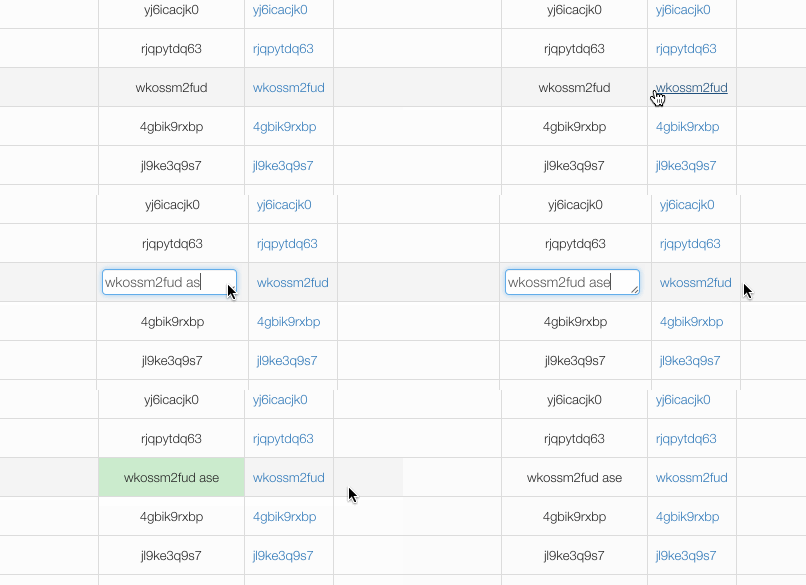
As you can see in the example above (or on the homepage), there is column name and it is editable. You can click on the column cell and a textarea will appear. Then on 'blur', ajax request is sent and your callback is fired.
/**
 * Example callback
 */
$grid->addColumnText('name', 'Name')
	->setSortable()
	->setEditableCallback(function($id, $value): void {
		echo("Id: $id, new value: $value"); die;
	});

/**
 * Or you can do that properly
 */
$grid->addColumnText('name', 'Name')
->setEditableCallback([$this, 'columnNameEdited']);Small inline edit is not limited to textarea, you can you input of type of your choice (that input will be submitted with either blur or submit (enter press) event). Example usage:
$grid->addColumnText('name', 'Name')
	->setEditableCallback(/**...*/)
	->setEditableInputType('text', ['class' => 'form-control']);
Textareas automatically size to the cell and edited content, up to 12 visible rows.
Longer values remain fully editable by scrolling. To override the automatic initial
height, pass an explicit rows attribute; values above 12 are also respected:
$grid->addColumnText('note', 'Note')
	->setEditableCallback([$this, 'noteEdited'])
	->setEditableInputType('textarea', ['rows' => 20]);
Or you can use a select:
$grid->addColumnText('name', 'Name')
	->setEditableCallback(/**...*/)
	->setEditableInputTypeSelect([
		0 => 'Offline',
		1 => 'Online',
		2 => 'Standby'
	]);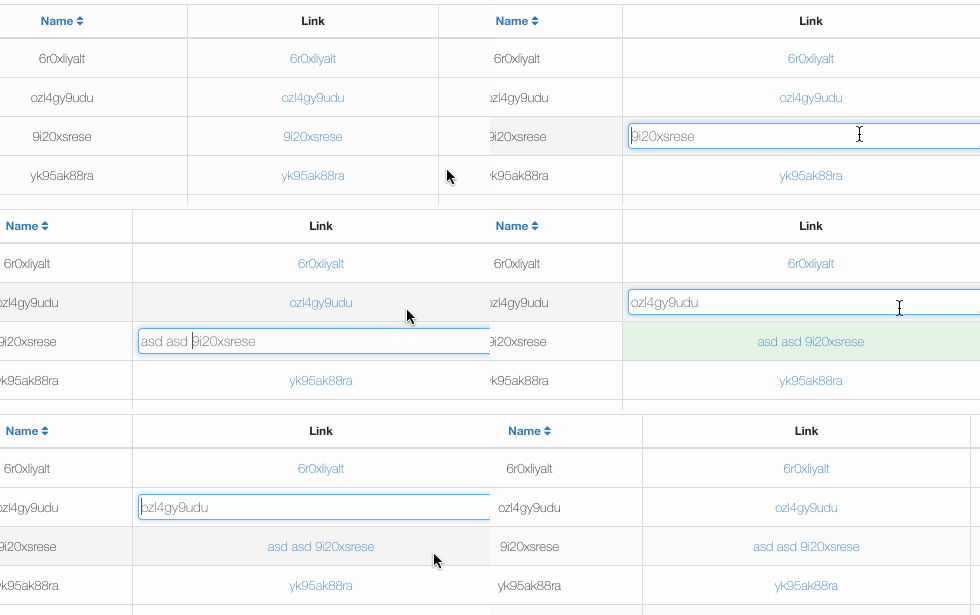
As you can see in the demo above, you can edit the link column but actually, only the link text will be edited. That you can achieve by following code:
$grid->addColumnLink('link', 'Link', 'this#demo', 'name', ['id'])
	->setEditableValueCallback(function(Dibi\Row $row): string {
		return $row->name;
	})
	->setEditableCallback(function($id, $value): Html {
		$link = Html::el('a')->href($this->link('this#demo', ['id' => $id]))
			->setText($value);

		return $link; // Important line - right here you have to return new content which will be rendered in edited column
});This one is much more powerful:

Example usage:
/**
 * @var Contributte\Datagrid\Datagrid
 */
$grid = new Datagrid($this, $name);

/**
 * Big inline editing
 */
$grid->addInlineEdit()
	->onControlAdd[] = function(Nette\Forms\Container $container): void {
		$container->addText('id', '');
		$container->addText('name', '');
		$container->addText('inserted', '');
		$container->addText('link', '');
	};

$grid->getInlineEdit()->onSetDefaults[] = function(Nette\Forms\Container $container, $item): void {
	$container->setDefaults([
		'id' => $item->id,
		'name' => $item->name,
		'inserted' => $item->inserted->format('j. n. Y'),
		'link' => $item->name,
	]);
};

$grid->getInlineEdit()->onSubmit[] = function($id, Nette\Utils\ArrayHash $values): void {
	/**
	 * Save new values
	 */
};
When columns are hideable ($grid->setColumnsHideable()), inputs of hidden columns are not rendered, so they are not sent. Values of hidden columns are left out of $values, so saving $values does not overwrite them with empty data. The names of the hidden columns are passed as the third argument:
$grid->getInlineEdit()->onSubmit[] = function($id, Nette\Utils\ArrayHash $values, array $hiddenColumns): void {
	// $hiddenColumns, e.g. ['name']
};By default, after submitting inline edit, the row is redrawn and the green animated background is triggered. But if you want to do something else, you can, just create new listener to event InlineEdit::onCustomRedraw():
/**
 * This callback will redraw the whole grid
 */
$grid->getInlineEdit()->onCustomRedraw[] = function() use ($grid): void {
	$grid->redrawControl();
};If you don't want to set all columns editable, you may want to show these columns normally rendered:
$grid->getInlineEdit()->setShowNonEditingColumns();Press Enter or leave the control to save a change. In a textarea, Shift+Enter
inserts a newline. Escape cancels an edit before saving. Once saving starts,
the control is read-only (a select is disabled) and the cell has aria-busy="true".
Repeated Enter, blur and select change events do not send another request.
Pending saves run independently: editing another cell, filtering, sorting or
pressing Escape elsewhere does not cancel a submitted save.
A failed or cancelled request restores the original display and marks the cell
with edited-error; this does not imply that the server rolled back a request
that had already started. Reopening the editor clears the error indicator.
A successful empty JSON response remains valid. Reinitialization after AJAX
updates binds each cell only once, including newly redrawn cells.
An explicit value supplied with setEditableValueCallback() is preserved,
including leading/trailing whitespace. Without that callback, the editor reads
the cell's rendered text (with BR elements as newlines), excluding template
indentation. Native input normalization is taken into account when detecting an
unchanged value.
Submitted values are displayed as plain text by default. An explicit non-empty HTML replacement returned by the server's editable callback retains its existing renderer contract. Configure select elements and editor attributes as trusted application configuration.