Nev includes built-in support for editing markdown files with visual formatting, text toggles, and inline image rendering. This is disabled by default. See the configuration section at the end on how to enable it.
Markdown files get several automatic rendering features that make the raw source easier to read without changing the file content.
Pipe tables are automatically aligned by adding invisible padding overlays so that columns line up visually. The actual file content is not modified.

Formatting markers like *, _, `, and ~ are hidden when your cursor is not on that line. The markers reappear as soon as you move your cursor to that line.

The # markers on heading lines are hidden when your cursor is not on that line. Instead, a subtle line is rendered below the heading to visually distinguish it.

By default the hiding doesn't happen on lines which contain a cursor as if the editor mode is in markdown.disable-on-cursor-lines-modes.
If markdown.disable-on-cursor-lines-modes is ["vim.insert"] then delimiter hiding is disabled when in vim.insert mode.
Four commands are available for toggling inline formatting on the current selection or word. If the selection already has the style, it is removed. If not, it is wrapped. If a different style is present, it is converted.
| Command | Style | Wraps with |
|---|---|---|
markdown.toggle-bold |
Bold | ** |
markdown.toggle-italic |
Italic | * |
markdown.toggle-code |
Code | ` |
markdown.toggle-strikethrough |
Strikethrough | ~ |
When toggling with an empty selection (just a cursor), the surrounding word is used. After toggling, tab stops are set up so you can cycle between the opening and closing delimiters.
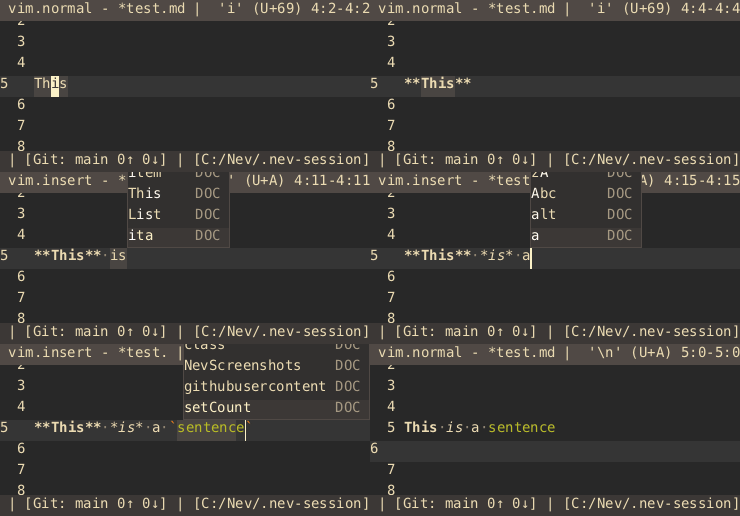
These commands are not bound to any key by default. Bind them in your keybindings.json under the appropriate input mode. See Keybindings for full details on the keybinding system.
// ~/.nev/keybindings.json
{
    "vim.normal": {
        "<C-b>": "markdown.toggle-bold",
        "<C-i>": "markdown.toggle-italic",
        "<C-c>": "markdown.toggle-code",
        "<C-s>": "markdown.toggle-strikethrough"
    }
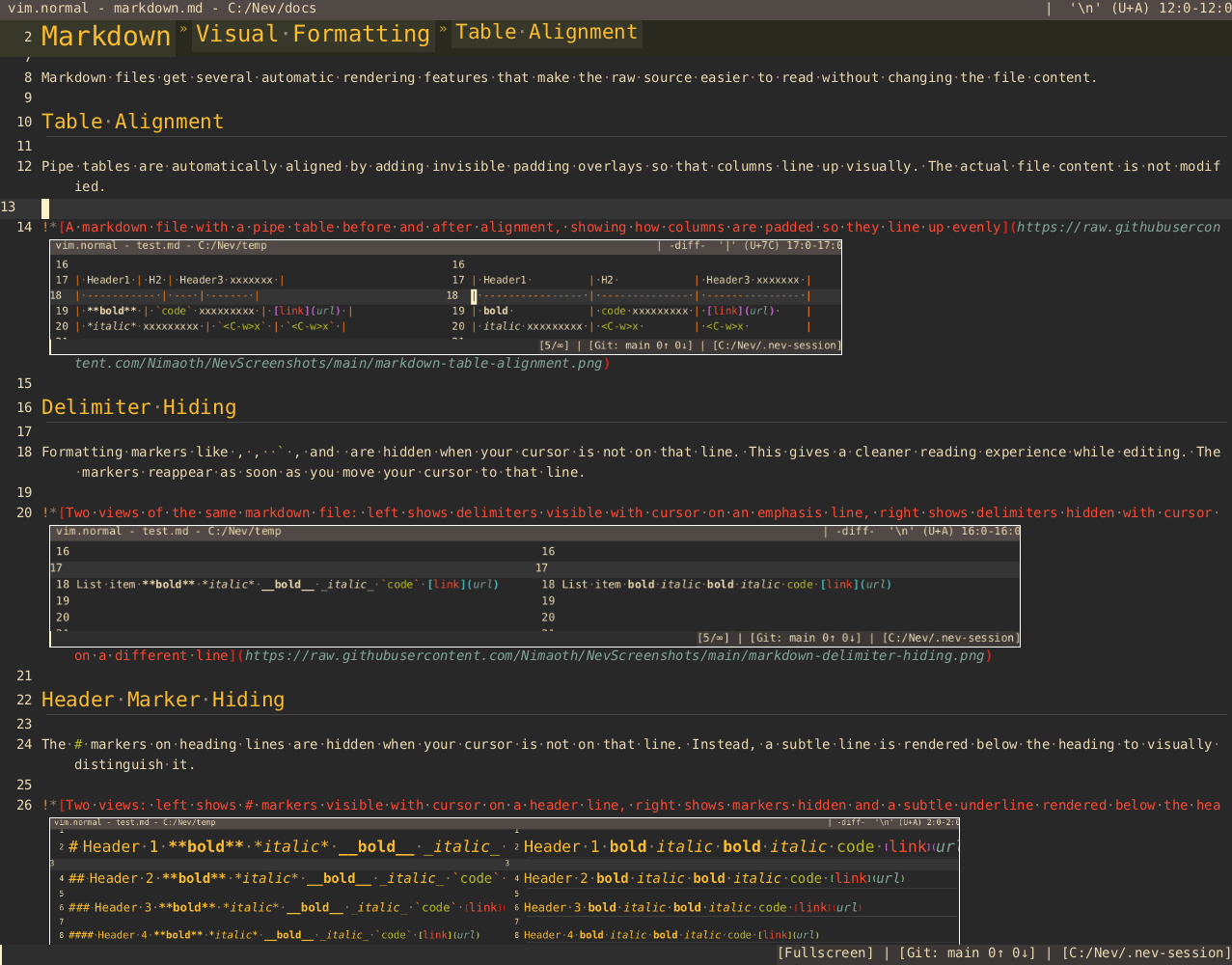
}The markdown plugin renders images inline in the editor for image links in the format .
Supported formats: PNG, JPEG, GIF, BMP, QOI, PPM.
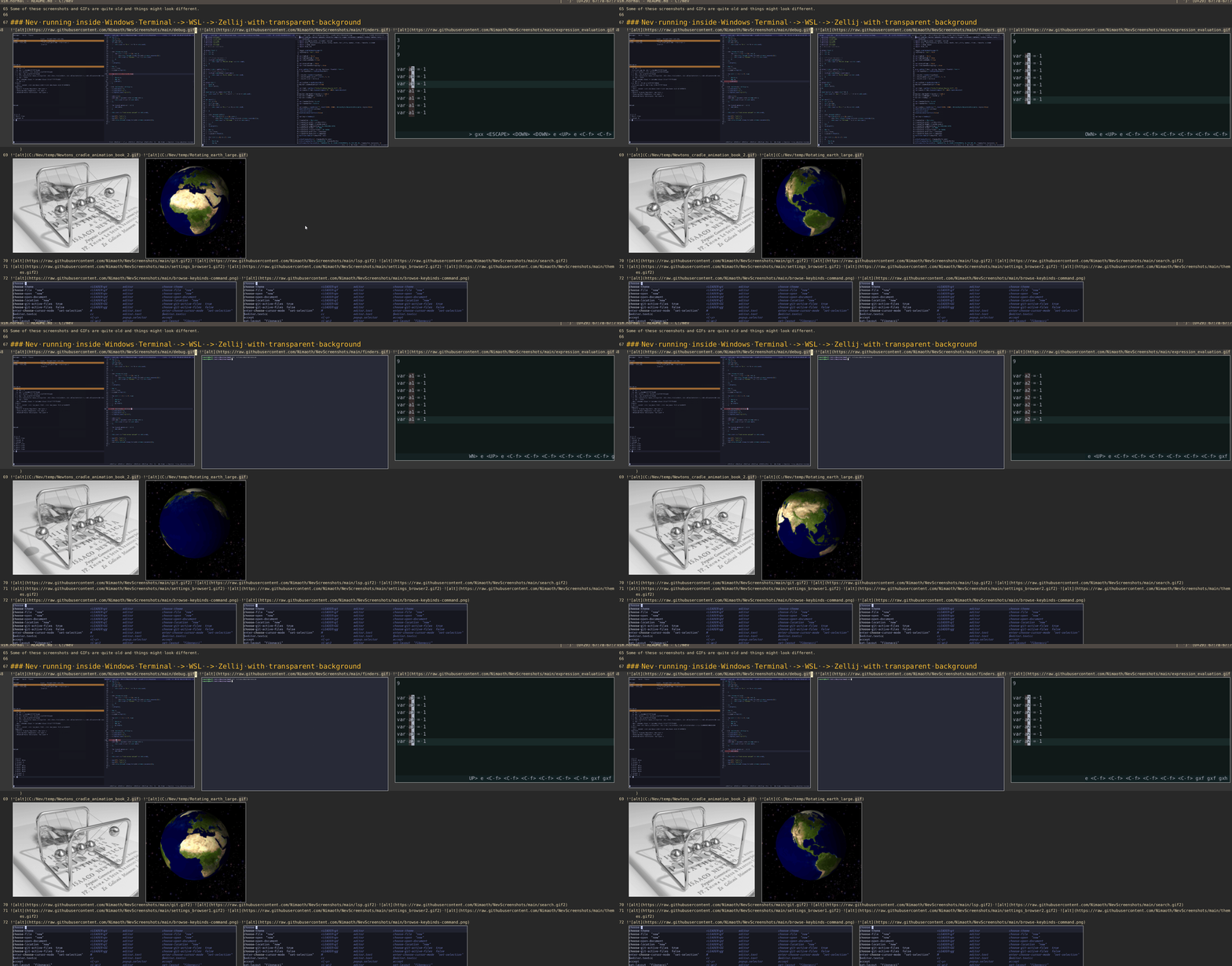
Animated GIFs are also supported:
| Command | Description |
|---|---|
markdown.change-image-scale |
Multiply the current image scale by a factor (e.g. 0.5 to halve, 2 to double) |
markdown.set-image-scale |
Set the image scale to an absolute value |
markdown.clear-image-cache |
Clear cached image textures, forcing them to be reloaded |
The image scale persists across sessions.
If your image paths don't resolve correctly (e.g. because they reference paths from another tool), you can remap them using plugin.markdown.path-remaps in your settings:
{
    "plugin.markdown.path-remaps": [
        ["/original/path/prefix", "/mapped/path/prefix"]
    ]
}
Each remap is a pair of [source, destination]. If an image path starts with the source prefix, that prefix is replaced with the destination prefix.
By default the markdown visual features (table alignment, delimiter hiding, header hiding, toggle commands) not active. To enable them set markdown.languages in your settings:
{
    "markdown.languages": ["markdown"]
}
Use ["*"] to enable for all languages.
The markdown language configuration (in the default settings.json) sets:
tab-width: 2indent: spacesblock-comment:<!-- -->context-lines: disabled (the sticky header feature is not useful for markdown)color-highlight: disabled by default, configured to detect hex colors like#FF0000